

With corporate culture normalizing remote work, project management tools are becoming excessively vital for remote teams.
And with countless options available, choosing the right one becomes tough.
Among these tools, ClickUp and Asana top the list of employees’ choice. With their dynamic features and unique capabilities, they simplify the complexities of remote project management.
Even though both tools simultaneously top the list, they are not the same. That is, they come with many dissimilarities.
So, once you incorporate one of them, it can be difficult to migrate to another. Affecting both your remote work productivity and project management.
But if you follow a proper guide, the migration process can be easy. So, in this blog, I am going to delve into ClickUp vs Asana, focusing on—
- Their key differences,
- Migration challenges and considerations,
- The migration process, and more.
So, come dive right in!
What Is ClickUp And Asana?
First things first, ClickUp and Asana are both project management tools with diverse features and advanced capabilities. Although they belong to the same group of digital tools, they are not the same.
That is, ClickUp comes with a more advanced set of features and high customization capabilities. So, remote employees can use it for collaboration, project tracking, and improving productivity.
On the contrary, Asana is a simple tool with an easy-to-use design. So, it offers remote employees a clean and straightforward platform to assign, track, and manage diverse projects within a single portal.
According to the report by the Digital Project Manager on ClickUp and Asana—
ClickUp offers a flexible, all-in-one solution for managing your team’s projects, while Asana provides a straightforward approach to organizing tasks and workflows. The main difference between ClickUp and Asana lies in how they cater to varying levels of project complexity and team collaboration needs, including support for small and larger teams alike.
1. Can I Integrate Other Tools With ClickUp Or Asana During Migration?
Generally, users can integrate other tools with ClickUp or Asana while migrating the files and documents. But it is vital to check that both the tools support the integration before starting the process.
ClickUp vs Asana: Key Differences Between Their Core Functions
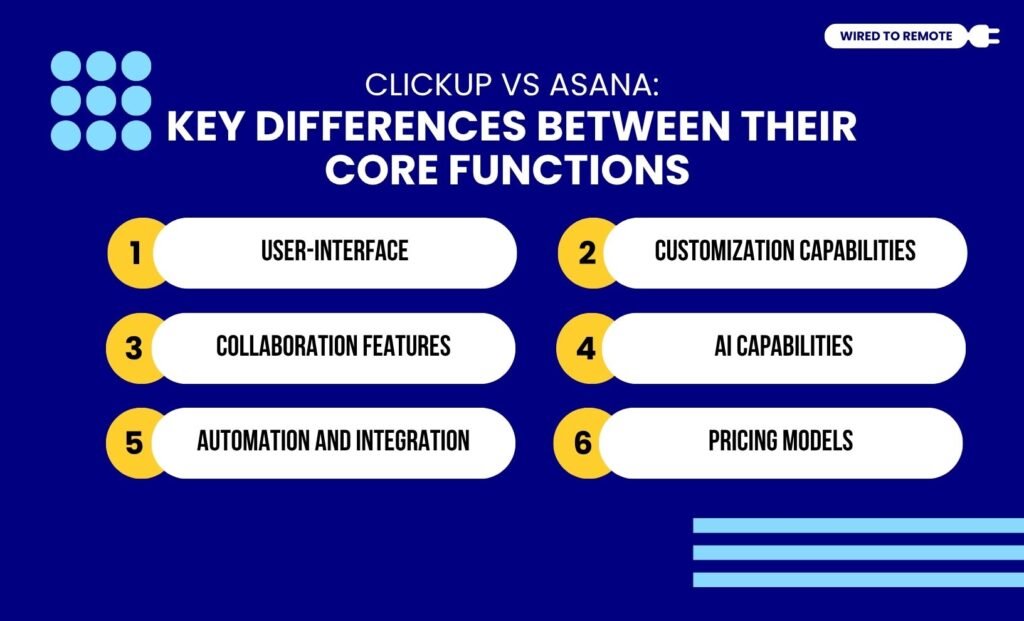
Given that ClickUp and Asana are not the same tools, here is a concise breakdown of their core differences—
1. User-Interface
Firstly, out of the two, Asana provides a comparatively simpler user interface. So, remote employees can easily use its straightforward design for task management.
But ClickUp has a more complex design with dynamic customizing features. So, there is a high chance for users to feel overwhelmed while navigating them.
2. Task View Differences
The way you view tasks inside each tool is fundamentally different. In Asana, clicking a task opens a clean right-hand sidebar over your project.
ClickUp opens tasks in a full modal overlay centered on your screen.
Furthermore, ClickUp lets you email external clients directly from inside a task window. Asana lacks this native email capability.
3. Customization Capabilities
As different projects come with different needs, customization in features is crucial. And that’s exactly what ClickUp offers for all its features. So, workers can customize the task blocks, timelines, and other features as they need.
But Asana offers comparatively limited customization options for its features. Moreover, most of these options are under the paid plans. So, employees need to subscribe to avail the customization options.
4. Collaboration Features
Unlike most project management tools, ClickUp and Asana offer built-in collaboration features for remote employees to communicate and collaborate on projects.
However, among the two, ClickUp offers a wide range of collaborative features – screen recording, video calls, visuals with mind maps, and more. Whereas Asana provides instant messaging and task-centered collaboration.
5. AI Capabilities
Both ClickUp and Asana have their own AI models integrated within the platforms. So, users can seek the assistance of Asana AI to summarize chats, prepare goals, and streamline workflows.
Similarly, ClickUp Brain offers Gen AI for writing, searching, and creating task breakdowns. So, making the task management process simple and easy.
6. Automation And Integration
Unlike Asana’s simple automation features, ClickUp provides over 100 built-in custom automation templates for task management. So, it is easier to streamline the workflow.
But Asana allows users to integrate over 250 major apps and tools, compared to the 50-app range of ClickUp. So, naturally, it helps users to further boost productivity with third-party integrations.
7. Pricing Models
- ClickUp Pricing — Starts at $10 per month for a single user.
- Asana Pricing — Starts at $13.49 per month for a single user.
Unlike Asana’s expensive rates, ClickUp provides affordable and accessible pricing options for users. So, it is a better choice for both remote individuals and companies.
8. Global Language and Accessibility Support
Language limitations can heavily impact user adoption during a software migration.
ClickUp only supports English and French across its interface and customer support teams.
Conversely, Asana is a highly mature platform that supports over 12 distinct languages. These include Spanish, German, Portuguese, traditional Chinese, and Japanese.
Asana also prioritizes visual accessibility by providing native color-blind display modes. ClickUp currently lacks built-in color-blind viewing options.
What Are The Migration Challenges?
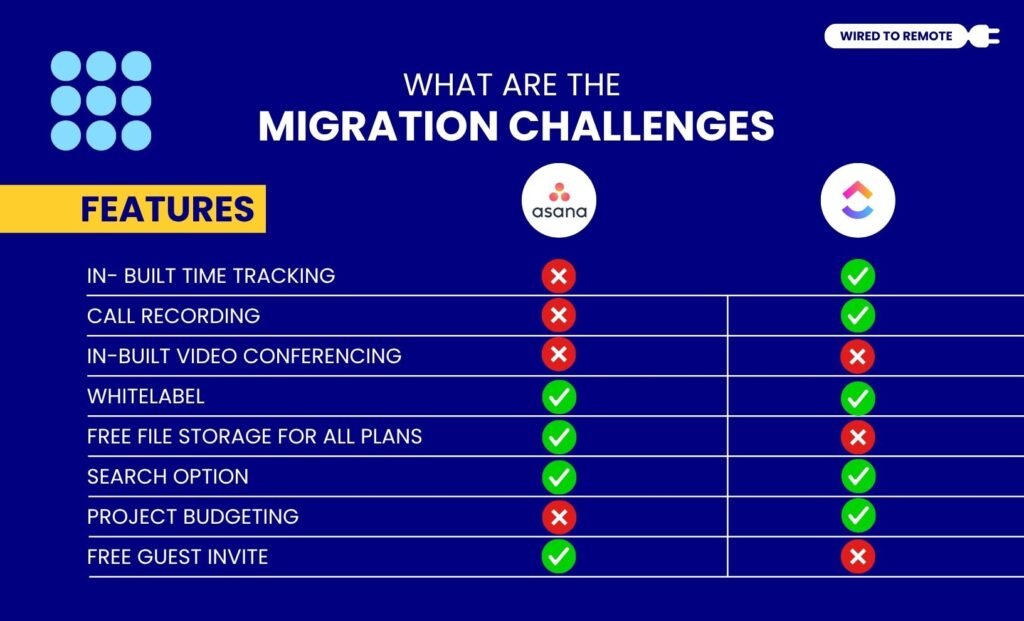
Although both ClickUp and Asana are project management tools, migrating from one to another is not a piece of cake. So, here are some of the core challenges—
- Loss of sensitive data due to unsupported custom fields.
- File attachment limitation for migrating larger documents.
- Loss of time tracking reports and details with the migration.
- Lack of an automated feature for migrating the files from one to another.
- Manually handling the migration takes time and effort.
Things To Consider Before Migrating From One To Another
Now, to avoid these challenges, a few considerations should be made, which include—
- Understanding the difference in the custom fields for both tools before transferring huge sets of data and files.
- Examining the integration capabilities in both tools to avoid removing integrated features while migrating.
- Training employees on how to use the new tool before completely migrating to it.
- Creating a backup for all the files and information to avoid data loss during the migration.
Consider The Mobile App Performance
Do not forget to evaluate the mobile experience before changing platforms.
Asana offers a much faster, cleaner, and more intuitive mobile app. It handles simple on-the-go task management flawlessly.
ClickUp is still actively developing and improving its mobile infrastructure. Its mobile app can feel cluttered due to the platform’s high complexity.
If your team often works from their phones, Asana is currently the superior option.
2. How Long Does The Migration Process Typically Take?
Usually, it takes a couple of minutes to migrate smaller files and up to an hour or two for larger files.
But if you are migrating the entire database, it might take several months to properly transfer the data from one to another.
How To Migrate From One To Another? Step-by-Step Guide

Since ClickUp and Asana are both project management tools, migrating from one to the other can be initiated with their native import/export feature. So, here’s how to start the process.
Migrating From ClickUp To Asana
If you are moving small datasets or files from one to another, here’s the step-by-step guide—
- Go to the Table view option in ClickUp and select the Customize button.
- Then, click on the 3 dots and choose Export View. From the dropdown menu, select Download.
- After that, clean up the CSV file by formatting it for Asana.
- Then, open Asana and create a new Project.
- From the dropdown menu in the Project File option, select Import. And, choose the CSV file from the folder.
- Finally, edit the task name and assignee name to finish the migration process.
Migrating From Asana To ClickUp
But if you are planning to migrate the files from Asana to ClickUp, here are the vital steps you need to follow—
- Go to the Project in Asana and hover over the title. From the menu, select the Export / Print option.
- Then, choose the file format as either CSV or JSON and export the file.
- Now, open ClickUp and start a new Workspace. Then, from the Settings menu, choose the Import option.
- After that, create a connection between the two platforms by selecting Asana as the import source.
- Then, map the Asana projects to ClickUp projects and Asana users to ClickUp users.
- Finally, once the mapping is complete, import the attachments and closed tasks into the Project. Then, you can finish the migration process.
3. Are There Any Third-Party Services That Can Assist With Migration?
Generally, there are countless third-party apps and tools that support the data migration process for project management tools. Some of them include—
- Amazon Web Services
- Microsoft Azure
- Google Cloud Platform
- Talend
- Carbonite Migrate
- Airbyte.
Expert Opinions And User Reviews

Here are some expert opinions and user reviews on the ClickUp-to-Asana migration. For instance, in the Reddit review, the user comments—
My take is that Clickup is Asana on steroids. It has a lot more functionality. A lot of edge cases where you often think “Hmm, I wonder if I could…” seem to be No in Asana and Yes in Clickup. The biggest one that I always struggled with in Asana is that tasks could only be in one place. This made it hard to find things, especially when spaces might be matrixed – both functional and project-based.
Another Reddit user comments on the same—
We’ve just migrated from Asana to ClickUp. The main reasons are the configurability and in-app time tracking. Also, the first paid tier has lots of what you need higher tiers for in Asana. Also, assigning two resources to one task isn’t doable in Asana.
According to the expert report in Digital Project Manager —
Both tools provide distinct advantages: ClickUp excels in comprehensive task management and advanced features, while Asana stands out for its superior collaboration capabilities and user-friendly interface, which makes it particularly well-suited for small teams.
Another expert opinion from ManyRequests suggests—
If you’re looking for flexible project management, ClickUp offers extensive views and custom workflows. Meanwhile, Asana simplifies planning for teams looking for a straightforward way to manage tasks.
How Can I Ensure Data Integrity During The Migration Process?
To ensure data integrity, users need to thoroughly clean and assess the data files before initiating the migration process.
Moreover, having a proper backup and recovery plan is also essential when migrating sensitive data to prevent data loss.
Also, check post-migration that the files and data have been safely transferred.
ClickUp vs Asana: Which One To Choose?
Choosing a project management tool can be confusing with countless options on the market. So, if you are also confused between ClickUp and Asana, here’s how to choose the right one.
For instance, if you are looking for a simpler and cleaner project management tool that offers basic features, you should go with Asana. With its simple features and limited customization, it is the perfect option for remote individuals.
But if you are looking for a dynamic tool with high customization capabilities and AI automation, ClickUp is the perfect tool.
So, based on what you need and your budget, you can choose between the two. And, now that you know how to migrate between them, go ahead and boost your productivity with the right tool today!



Leave A Comment