

It’s no news that miscommunication is a growing concern in a remote setting. Making companies incorporate diverse communication systems for smooth virtual collaborations.
Now, among the countless communication tools available, Google Meet has become an indispensable one. Keeping remote employees connected at zero cost.
So, it’s not at all surprising that it has found its place as one of the most popular communication tools in a remote work setting.
But as a free tool, it comes with certain limitations.
Especially with group calls, Google Meet limits the duration. Making employees either wrap the meeting details within the time limit or extend it with another meeting link.
That’s why it is vital to know the Google Meet Time Limits to host free meetings.
So, in this blog, I have brought you a complete guide on the time limitations of Google Meet calls by exploring—
- Why the time limitations matter,
- The exact time limits and their consequences,
- Steps to host the free meetings, upgrading tips, and more.
So, come dive right in!
Why Does Google Meet Have A Time Limit?

Firstly, Google Meet offers a reliable communication platform to over 300 million monthly active users across the world.
Not only because it affordable, but since it seamlessly integrates within the Google Workspace, it has become a fan favorite in the remote work culture.
That is, anyone with a Google account can host or join a free Google Meet call. Making it easier for remote employees to stay connected in a virtual workspace.
But this huge user base means providing high-quality services and resources for smooth meetings. That’s why it limits the duration of call hours for both single and group calls.
In addition to this, it prompts the remote users to upgrade to the premium subscription plans for additional features and extended meeting time. So, it helps Google to fund the sustainable services.
What Are The Google Meet Time Limits?
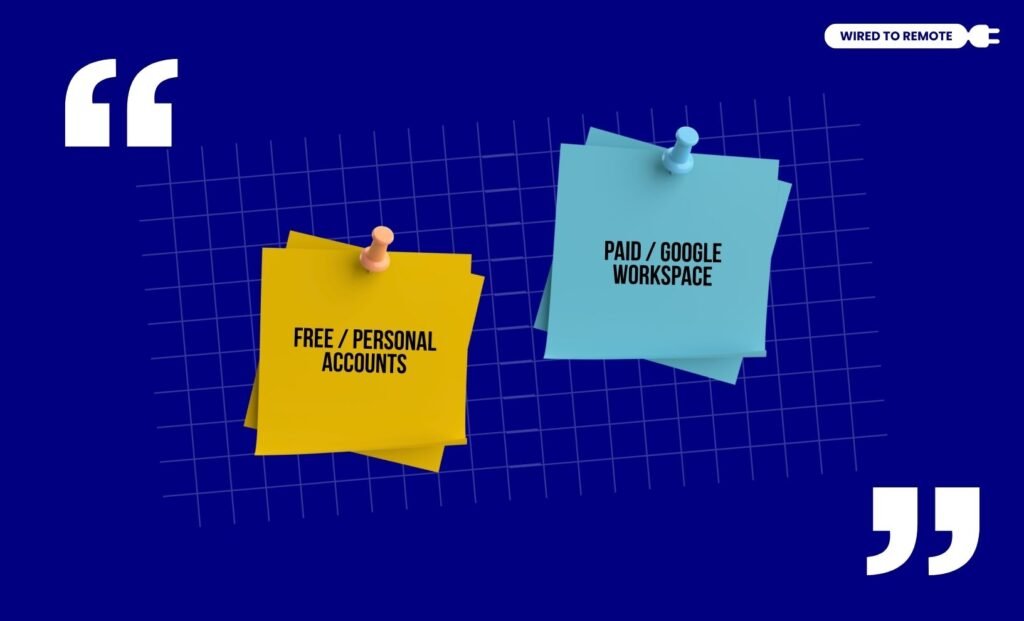
Even though Google Meet limits the duration of free calls, it is not the same for both single and group calls. So, here are the specific time limits—
1. Free / Personal Accounts
Firstly, if you are using a personal free account, the time limits are different for one-on-one calls and group calls.
- One-on-One Calls: For free single calls, the users get a 24-hour time frame. That is, the call duration is practically unlimited.
- Group Calls (3+ members): However, for group calls with over 3 members, the call duration is limited to 60 minutes. Moreover, the users are notified around 55 minutes, that the meeting will end in the next 5 minutes.
2. Paid / Google Workspace
Unlike the free accounts, the time limit for meeting calls can be extended with the paid or subscription plans.
- One-on-One Calls: Similar to the free plan, the paid single calls have unlimited duration. That is, the call can be extended for 24 hours.
- Group Calls (3+ members): Moreover, the paid plan extends the time limit to 24 hours, like the one-on-one calls. So, workers can discuss the meeting details with zero interruptions or ending calls mid-sentence.
What Happens When The Time Limit Is Reached?
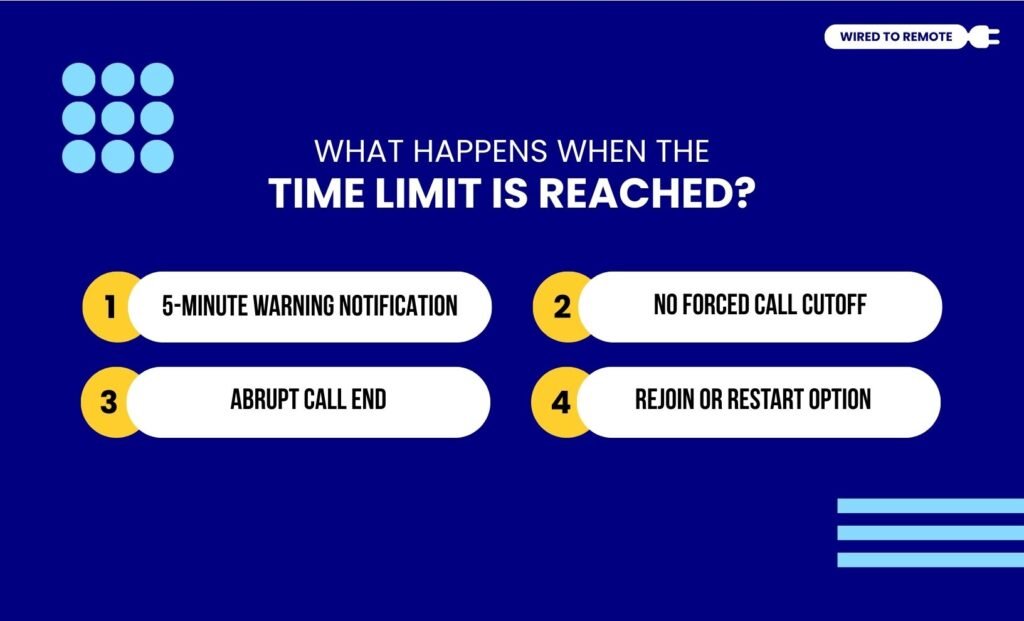
Unlike other platforms, Google handles the time limit for meeting calls professionally. So, here is what happens when the time limit reaches—
- 5-minute Warning Notification: Firstly, Google Meet sends a notification to all the participants in a free group call 5 minutes before the meeting ends. This helps to avoid an abrupt ending of the call in the middle.
- No Forced Call Cutoff: Moreover, for paid group calls and free single calls, the meeting is not forcefully cut off. That is, they get an unlimited time limit to discuss, communicate, or collaborate on the platform.
- Abrupt Call End: However, in the free group call, after the 5-minute warning, the call ends right when the time limit of 60 minutes is reached. So, the participants are removed from the call.
- Rejoin Or Restart Option: But in the free group call, the participants can rejoin the meeting using the same link. Alternatively, they can restart another meeting using a new link to continue the discussions.
How To Host Free Remote Meetings On Google Meet?
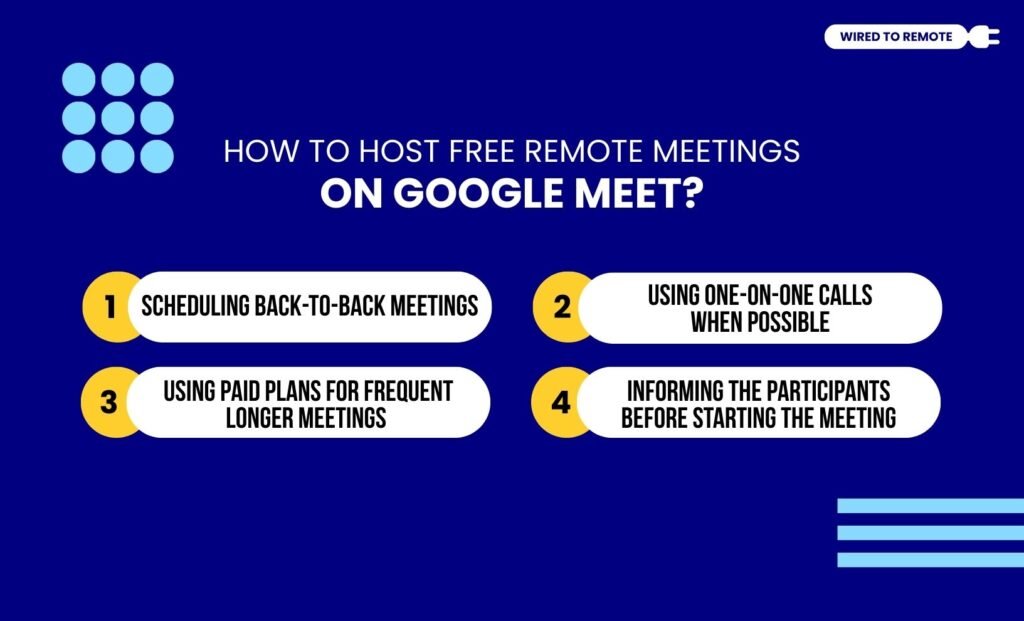
Even if you have a free account, you can host group calls. That is, there are a few workaround ways to host free remote group calls, which include—
1. Scheduling Back-to-Back Meetings
Firstly, if you have to conduct longer meetings, it is better to schedule back-to-back calls with the participants. So, they can join the new links right when the first one ends after the 60-minute duration.
2. Using One-on-One Calls When Possible
Moreover, switching to single calls whenever possible is a better way to host free remote meetings. Since the single calls are unlimited, using them to communicate over a group call can help discuss longer conversations.
3. Using Paid Plans For Frequent Longer Meetings
But if you have to frequently conduct group meetings, it is better to upgrade to the premium plans. That is, with paid plans, you can conduct the meetings without worrying about the time limits.
4. Informing The Participants Before Starting The Meeting
In addition to this, you can keep the other participants informed about the meeting time limits. So, they can plan the discussion accordingly without ending the call abruptly. This way, there will be no mid-meeting surprises.
When Should Remote Teams Upgrade Google Meet?
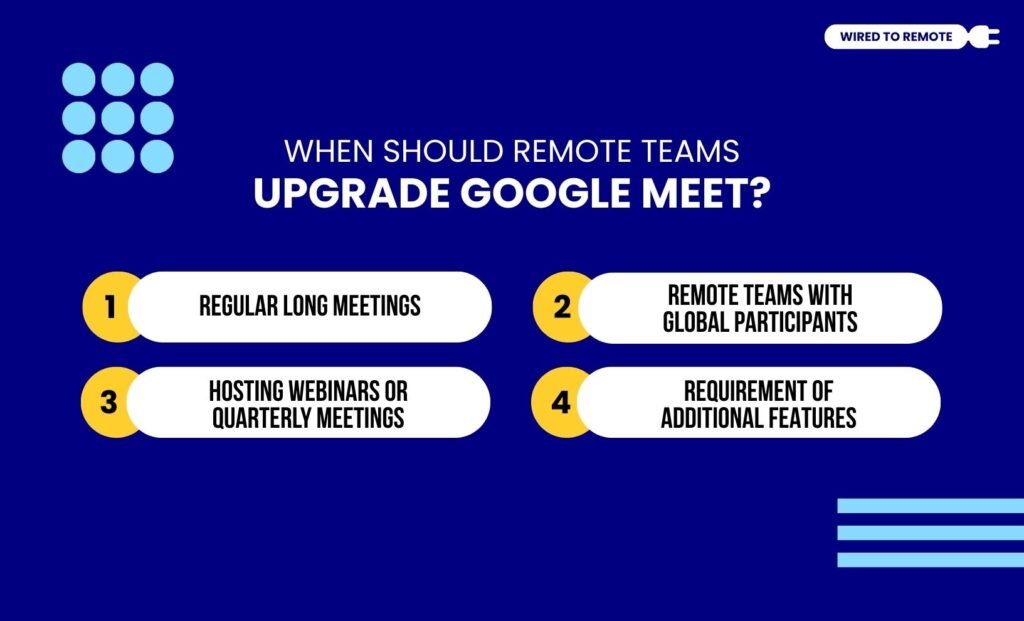
Although the free plan is effective for single calls, its time limits for group calls can prevent remote teams from communicating efficiently. So, here’s when to upgrade the Google Workspace—
- Regular Long Meetings: If you need to host regular long meetings or group calls, it is better to upgrade the Google Workspace. This way, you can host unlimited meetings with zero interruptions.
- Remote Teams with Global Participants: Now, if the team is diversely populated with members joining from various locations, upgrading can remove the time limits. So, all the members can join and discuss without any abrupt call cuts.
- Hosting Webinars or Quarterly Meetings: Moreover, if you need to host webinars and quarterly events that extend over the 60-minute time frame, it is better to upgrade the Google account.
- Requirement of Additional Features: Additionally, if you need special features like meeting recording, breakout rooms, attendance tracking, and more, upgrading the plan can provide them all. So, you can use them accordingly.
Now, hosting a free Google Meet call is not difficult. But the time limits can make continuing the calls a challenge.
So, use the workaround methods to communicate with your remote teammates on the free Google Meet platform. Making virtual collaboration and communication simple.
FAQs
Here, I have delved into the common questions that most remote workers ask about time limits on Google Meet.
No, the time limits for one-on-one calls and group calls vary in Google Meet. That is, free single calls can last up to 24 hours, whereas the group calls with over 3 people are limited to around 60 minutes. So, based on the number of people on the call, the time limit on Google Meet differs.
No, a Google Meet group call does not automatically resume after the 60-minute time limit. But it does provide a warning about the call ending around 55 minutes. So, users can rejoin the same link or start a new meeting link to continue the discussions.
Yes, absolutely. When users upgrade to any premium plan on Google Meet, it automatically removes the 60-minute time limit on group calls. Moreover, it extends the time limit to that of the single calls, that is, 24 hours. So, users can call for a longer duration to discuss various topics.
The meeting time limits on Google Meet are for per meeting. That is, per free one-on-one meeting is limited to 24 hours, and group calls are limited to 60 minutes. But with upgraded plans, the group call can extend up to 24 hours. So, based on the type of Google Meet call, the time limit can differ, but the limit is for per meeting and not per day.



Leave A Comment