
- Slack Huddle is a newly launched built-in feature that allows remote workers to have a quick call in real-time with anyone in the workplace.
- It does not require scheduling or communicating the call agenda among the members. So, it offers an informal setup for office conversation.
There’s no doubt about how strikingly different remote and office cultures are. Both of them come with their own set of benefits and challenges.
Now that remote work is slowly becoming the corporate norm, various ways of replicating the 9-to-5 office culture are being explored.
Within a remote work setup, employees feel isolated and unmotivated to work. So, they want to engage with their colleagues beyond the project deadline meetings.
That’s where Slack’s newly launched Huddle feature comes into play.
With its modern and dynamic communication approach, it literally replicated the office breakroom chats in a remote culture. So, making workers feel connected.
Moreover, this feature enables a quick catch-up call between colleagues and teammates. Letting them share their opinions and discuss things beyond work meetings.
So, if you want to know what is Huddle in Slack, keep reading!
What Is Huddle In Slack And Why Is It Popular In Remote Work?
In a remote work culture, where team communication is challenging, Slack offers one of the most efficient communication systems.
Especially, its newly launched Huddle feature provides the perfect digital space to drop in a quick audio call with your work bestie!
Simply, Slack Huddle is a built-in feature of the app that allows workers to mimic regular office conversations in a remote culture. So, enabling them to indulge in informal communications without scheduling a conference meeting.
Moreover, it allows around 50 members to join in a conversation at one time. So, balancing communication and productivity in an informal setting.
Given that remote work can feel a tad bit isolating, Slack Huddle is gaining popularity among workers. But much of its popularity lies in its features and benefits—
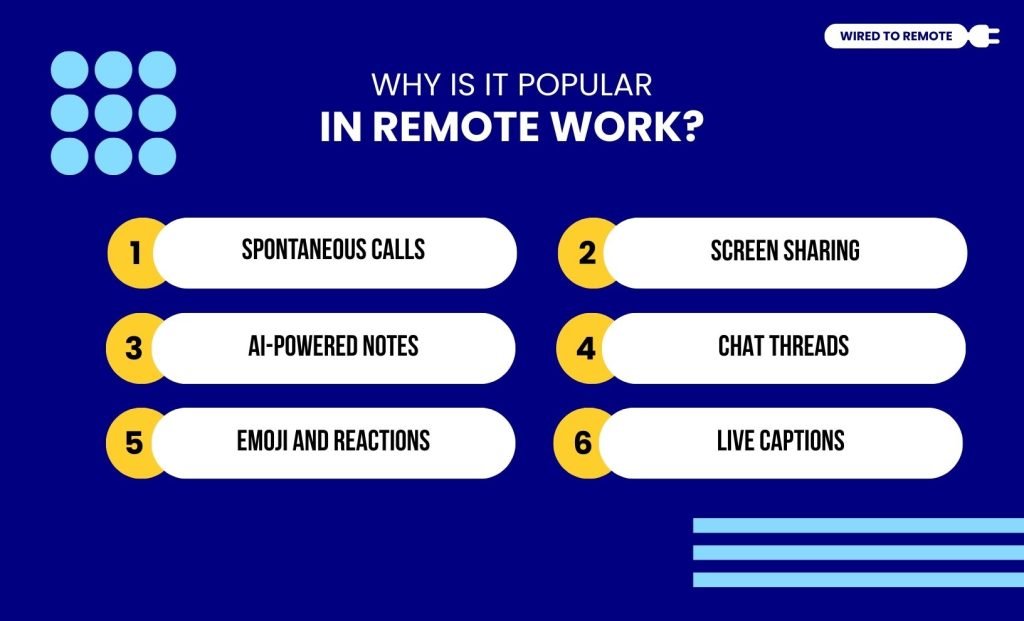
Here are some of the reasons why Slack Huddle is popular in remote work:
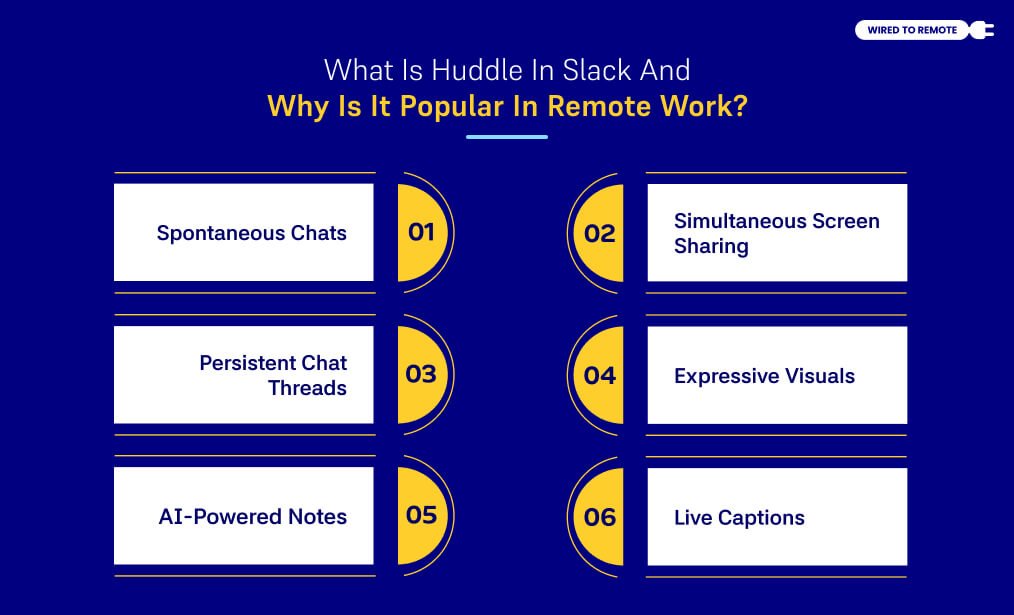
Spontaneous Chats:
Initiated with a single click, Huddles are audio-first by default. This layout relieves the pressure of being camera-ready, effectively reducing digital meeting fatigue.
Simultaneous Screen Sharing:
Unlike traditional platforms restricted to a single presenter, multiple participants can share their screens side-by-side to cross-reference documents or compare data in real time.
Persistent Chat Threads:
Every session automatically generates a dedicated text thread. All links, files, and messages shared during the call are permanently archived within the channel history.
Expressive Visuals:
Teams can interact silently using a combination of floating emojis and persistent status badges like “Raise Hand” or “Be Right Back” to communicate without unmuting.
AI-Powered Notes:
When integrated with the Slack AI add-on, the system automatically transcribes audio, identifies key takeaways, and compiles actionable steps into a clean Slack Canvas.
Live Captions:
To accommodate diverse work environments, real-time, ephemeral English captions can be toggled on to ensure accessibility.
Key Differences Between Slack Huddle And Conference Call
Even though Slack Huddle is often confused as another conference meeting app, there is a slight difference between them. So, some of these core differences include—
| Slack Huddle | Conference Call |
|---|---|
| 1. It is an informal setup for an impromptu conversation with anyone in the workspace. | 1. It is a scheduled call set within a formal setting with a fixed list of attendees. |
| 2. There is no previously discussed agenda for the call. | 2. Oftentimes, there is a predecided agenda for the meeting. |
| 3. Initially started as an audio-only call, then introduced the video option. | 3. Offered both audio and video calls from the get-go of the launch. |
How Does Slack Huddle Work In Remote Work?
Generally, the Slack Huddle feature is provided to paid users. So, with a premium subscription, anyone can use the feature in their remote work.
Here’s how you can set up a Slack Huddle for your remote work—
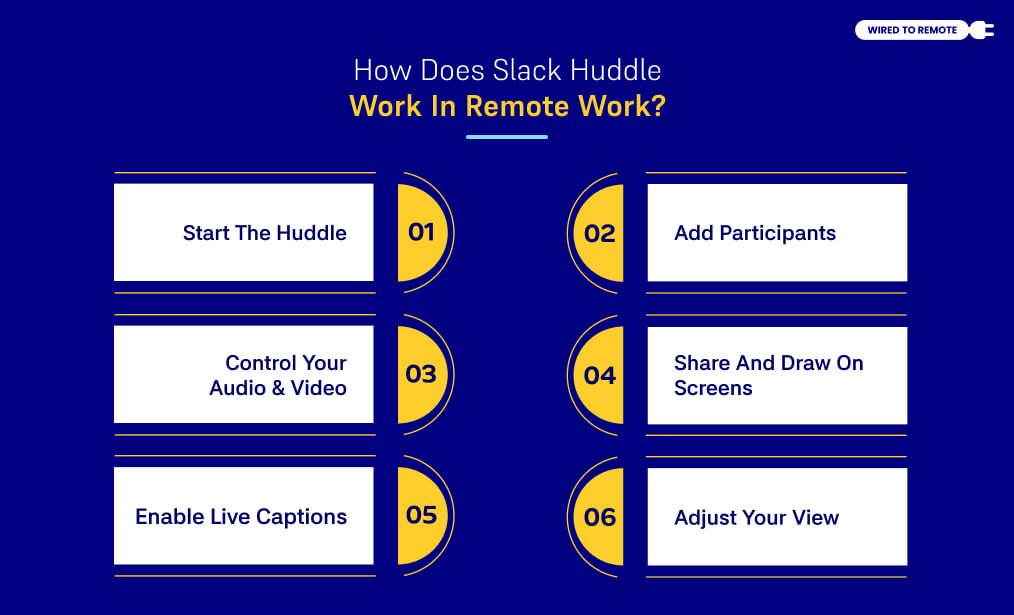
1. Start The Huddle
Open the specific channel or Direct Message (DM) where you want to talk.
Click the headphones toggle switch located in the bottom-left corner of your sidebar (or the top-right header area of your chat window).
Alternatively, you can also press Ctrl + Shift + H (Windows) or Cmd + Shift + H (Mac).
2. Add Participants
Click the Add People icon on the Huddle window to invite additional teammates to the call.
3. Control Your Audio & Video
Click the Microphone icon to mute or unmute yourself. Click the Video icon to turn your camera on or off.
4. Share And Draw On Screens
Click the Screen icon to share your screen with the team. Use the integrated drawing tools to sketch or circle items directly on the shared window.
5. Enable Live Captions
Click the Three Dots icon on the mini-player menu. Select Turn on captions to view real-time text of the conversation.
6. Adjust Your View
Click the Pop out arrow icon to view the Huddle in a larger, dedicated window, or leave it docked in your sidebar to keep browsing other chats.
Joining A Slack Huddle
Similar to starting a Slack Huddle, joining an active one is quite easy. So, just follow these steps to join the huddle—
- If you find an active Huddle and want to join, click on the Headphone icon.
- Then, go to the channel or DM and toggle on the Headphone sign to hear the conversation.
- Also, use the Mic icon to talk and chip in on the conversation.
- But if you want to join a Huddle with an external partner, you need to enable Slack Connect before joining the conversation.
- Then, find the Headphone icon in the top right corner of the window and click on it. This way, you can join the conversation instantly.
Things To Keep In Mind While Using Huddle In Slack
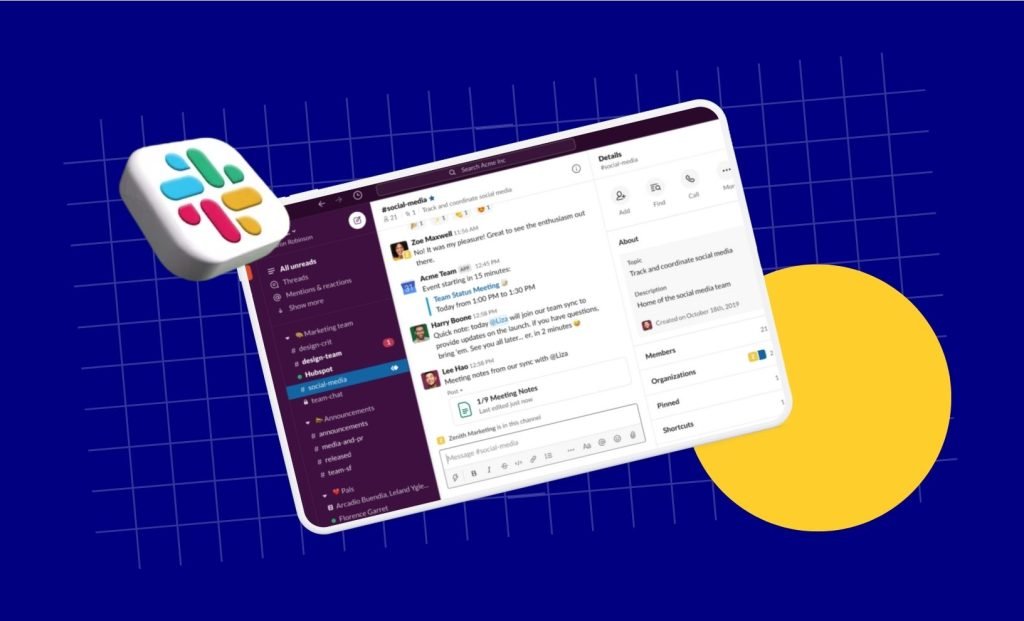
Having a communication feature like Slack Huddle can effectively improve the overall work environment in a remote setup. Enabling workers to collaborate and build team bonds.
But while using it, a few considerations should be made—
- Avoiding any offensive or discriminatory comments and remarks.
- Keeping the conversation friendly and engaging without abusing anyone verbally.
- Preventing overextending the call that might affect the productivity of the team.
By focusing on these things, remote workers can utilize the platform to its full potential.
So, now that you know all about— “What is Huddle in Slack?” Go ahead and use it to get the feel of office culture without stepping out of your remote work comfort zone.
Plan-Specific Limitations And Restrictions
Understanding Slack’s tier-based limitations prevents workflow disruptions and helps you choose the right setup for your team.
The feature set changes significantly depending on whether your organization uses a free or paid workspace.
1. Free Plan Restrictions:
Workspaces on Slack Free level can have the 1-on-1 Huddles only (maximum 2 participants). Besides that, free plans do not support advanced collaboration features, e.g. multi-person screen sharing, native canvas integration, and long-term thread history.
2. Limits of Paid Plans:
Pro, Business+, and Enterprise Grid plans offer the abilities of the group for up to 50 people at the same time.
3. Video Limitations:
Although 50 attendees can share the same session at once, only 25 of them can have their video cameras on at the same time to save bandwidth.
Note: If your team cannot scale a call past two people, verify your workspace subscription status in the billing settings.
Advanced Interactive Features
Slack Huddles offer several interactive features that allow team members to collaborate dynamically without constantly unmuting their microphones. These tools keep remote conversations highly engaging and visual.
Temporary Reactions vs. Sticky Badges:
During a call, you can communicate silently using two distinct types of visual feedback. Clicking a standard reaction sends a temporary, floating emoji across the screen – ideal for a quick thumbs-up or celebratory applause.
For a longer-term context, you can apply sticky badges like
- Raise Hand
- Be Right Back.
These badges remain pinned to your user profile card until you manually remove them, letting colleagues know you want to speak or have stepped away.
Multi-Person Screen Drawing:
When a teammate shares their screen, collaboration goes beyond passive viewing. Other participants can select integrated drawing tools to sketch directly onto the live shared window.
This feature allows users to physically circle design flaws, highlight specific code blocks, or point out precise data cells in a spreadsheet. The digital ink fades after a few seconds, keeping the shared screen clean and easy to read.


Leave A Comment